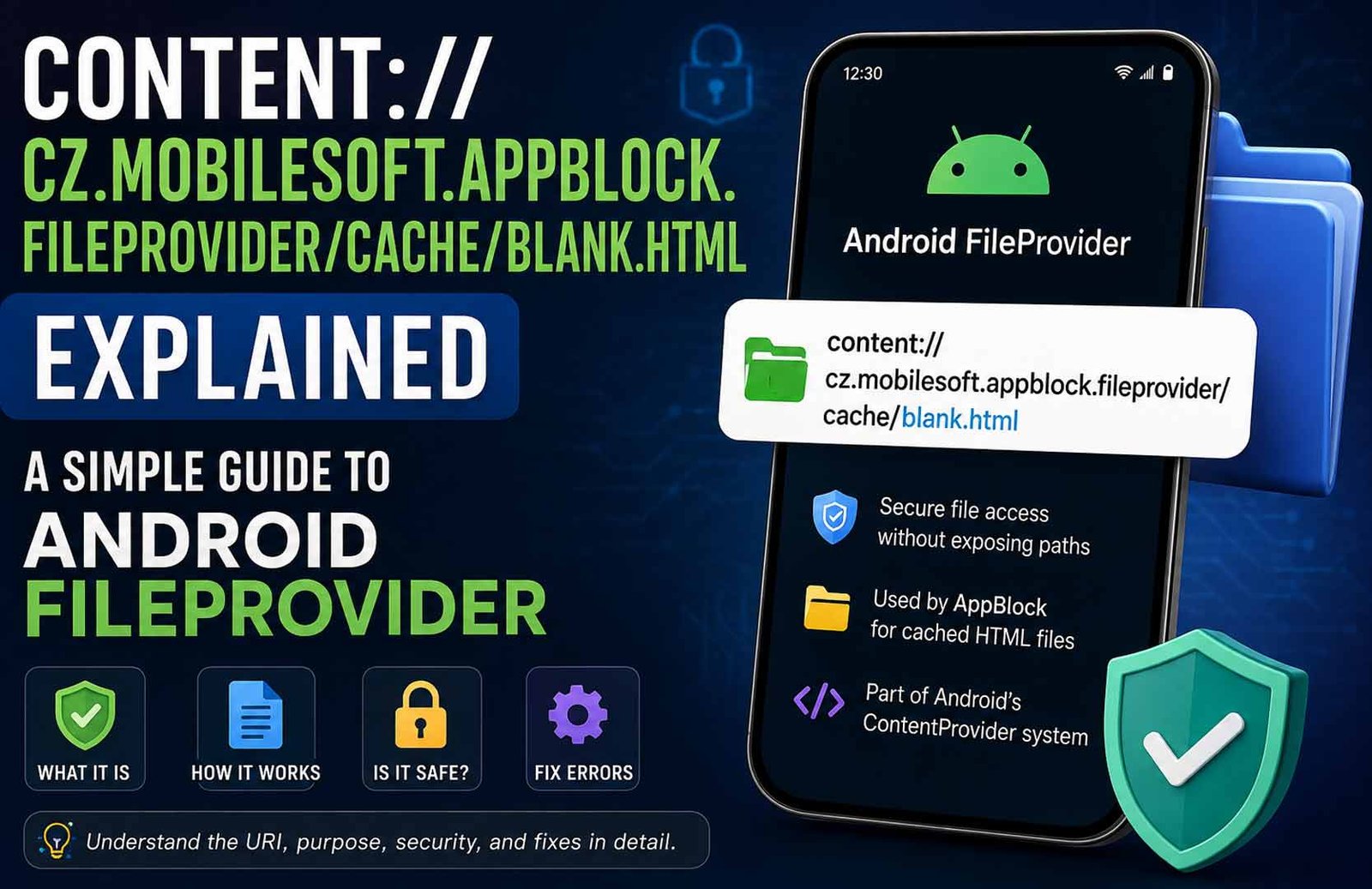
If you have seen content://cz.mobilesoft.appblock.fileprovider/cache/blank.html in your Android browser history, system logs, or an error message, you may wonder what it means. At first glance, it looks like a website address, but it is actually something very different.
This URI is part of Android’s content-sharing system and is associated with the AppBlock app. It helps the app securely access a temporary HTML file without exposing its internal storage.
In this guide, you’ll learn what this URI is, how Android FileProvider works, why the file exists, whether it is safe, and what to do if you encounter related errors.
What Is Content://cz.mobilesoft.appblock.fileprovider/cache/blank.html?
content://cz.mobilesoft.appblock.fileprovider/cache/blank.html is an Android Content URI. It is not a website or a public web page. Instead, it is a local address that Android apps use to access files in a secure way.
The URI is linked to the AppBlock application. According to the available sources, it points to a temporary HTML file named blank.html that is stored inside the app’s cache folder. The app can use this file when handling blocked websites or web content.
Unlike a normal file path, a content URI does not reveal where the file is stored on the device. Android uses this system to protect app data while still allowing approved apps or system components to access specific files when needed.
In most cases, this URI works only if AppBlock is installed and Android grants the required permissions. If either requirement is missing, the URI may return a permission error or fail to load.
Breaking Down Each Part of the URI
The full URI may look confusing, but each part has a specific purpose.
content://
The first part is the scheme. It tells Android that this is a content URI managed by a ContentProvider instead of a normal web address.
Unlike https://, this scheme is designed for local app resources rather than internet websites.
cz.mobilesoft.appblock.fileprovider
This section is called the authority.
It identifies the FileProvider responsible for the requested resource. Android checks this authority to determine which installed application owns the file and whether access should be allowed.
Each FileProvider should have its own unique authority so Android can route requests correctly.
/cache
This part points to the application’s cache directory.
Android applications use cache folders to store temporary files that help improve performance. These files can usually be recreated if they are removed.
blank.html
This is the actual file being requested.
Based on the available information, it is a cached HTML file that AppBlock uses as part of its content-handling system. The exact contents of the file have not been independently verified.
Together, these four parts allow Android to locate the correct resource while keeping the real storage location hidden from other applications.
What Is AppBlock?
AppBlock is an Android productivity application designed to help people reduce distractions while using their phones.
The app allows users to block selected apps and websites during work, study, or other focus sessions. Many people also use it to manage screen time and build healthier digital habits.
According to the collected sources, AppBlock was developed by MobileSoft s.r.o. The application uses Android’s FileProvider system to securely manage certain internal files instead of exposing direct file paths.
When AppBlock blocks a website or web-based content, it may load a local HTML page instead of allowing the original page to appear. This helps provide a smoother experience while keeping the blocking process inside the app.
Because AppBlock relies on Android’s built-in security features, many of its internal files are accessed through content URIs like content://cz.mobilesoft.appblock.fileprovider/cache/blank.html instead of ordinary file locations.
What Is the Purpose of Blank.html?
The file blank.html appears to serve as a simple replacement page inside AppBlock.
When a blocked website would normally load, AppBlock can display this local HTML file instead. This allows the app to replace restricted content without showing browser errors or broken pages.
Using a cached HTML file also has performance benefits. Since the file is already stored on the device, it can load much faster than requesting another page from the internet.
Another possible advantage is that the original webpage’s scripts, advertisements, videos, and trackers do not continue loading after the page has been blocked.
The available sources describe the file in slightly different ways. One source suggests it may display a short message explaining that the content has been blocked. Another describes it mainly as an empty HTML page. Because there is no independent confirmation of the file’s exact contents, it is best to treat both descriptions as reported explanations rather than confirmed facts.
Regardless of its exact appearance, the file’s main purpose seems to be providing a safe and lightweight replacement page whenever AppBlock blocks web content.
Why the File Is Stored in the Cache Folder
Android applications use cache folders for temporary files that help the app work more efficiently.
The blank.html file is stored inside AppBlock’s cache directory because it does not need to remain on the device permanently. If Android clears the cache to free storage space, the application can usually create the file again when it is needed.
Keeping the file in the cache folder also allows AppBlock to load it quickly without downloading anything from the internet. This helps improve speed when blocked content needs to be replaced.
It is also important to understand that cache files are different from personal documents or saved user data. They are temporary resources that support normal app functions.
If you clear AppBlock’s cache in Android settings, the blank.html file may be removed. In most situations, the app can recreate it automatically the next time it needs it.
What Is an Android Content URI?
A Content URI is a secure address that Android uses to access files and other data managed by applications.
Instead of giving another app the real storage location, Android provides a content URI that points to the resource through a ContentProvider. This allows Android to control who can access the file and under what conditions.
A typical content URI follows this format:
Each part has a different job:
- content:// identifies it as a Content URI.
- Authority identifies the app or provider that owns the data.
- Path points to a folder or data category.
- Resource identifies the specific file or item being requested.
Content URIs are used for much more than files. Android also uses them for contacts, photos, videos, media libraries, downloads, calendars, and many other types of shared data.
Applications usually access these resources through Android’s ContentResolver, which checks permissions before allowing access.
Because of this design, a content URI should not be treated as a normal file path. It is simply a secure reference that Android understands.
What Is Android FileProvider?
Android FileProvider is a special type of ContentProvider that allows applications to share files securely.
Before FileProvider became common, many apps shared files using direct file:// paths. Those paths exposed the real location of files on the device, which created security and privacy risks.
FileProvider solves this problem by generating content:// URIs instead.
When another application needs access to a shared file, Android checks the FileProvider first. If the required permission has been granted, the provider opens the file without revealing its actual storage path.
This approach offers several important benefits:
- It hides the application’s internal folder structure.
- It allows temporary access to individual files.
- It reduces the risk of exposing sensitive storage locations.
- It works with Android’s permission system.
- It supports safer file sharing between applications.
In the case of content://cz.mobilesoft.appblock.fileprovider/cache/blank.html, the FileProvider acts as the secure bridge between AppBlock and the cached HTML file it needs to access.
Content:// vs File:// URIs
Both content:// and file:// URIs are used to identify files on Android, but they work in different ways.
A file:// URI points directly to a file’s location on the device. This exposes the real storage path, which can create security and privacy risks if shared with other apps.
A content:// URI does not reveal the actual file location. Instead, Android uses a ContentProvider or FileProvider to control access. The receiving app only gets permission to use the file, not its real path.
Here is a simple comparison:
| Feature |
content:// URI |
file:// URI |
| Shows real file path |
No |
Yes |
| Uses Android permissions |
Yes |
Limited |
| Safer for sharing |
Yes |
No |
| Temporary access |
Yes |
Usually No |
| Recommended for modern Android |
Yes |
No |
Since Android 7.0 (API 24), Google has discouraged direct file sharing through file:// URIs. Apps that still use them may trigger a FileUriExposedException. That is why modern Android apps, including AppBlock, use FileProvider instead.
Why This URI Appears in Browser History or Android Logs
Many users become concerned after seeing content://cz.mobilesoft.appblock.fileprovider/cache/blank.html in their browser history or Android logs.
In most cases, this is a normal result of how AppBlock works.
The URI may appear when AppBlock replaces a blocked webpage with its cached HTML file. It may also appear while Android processes WebView requests, caches files, or records application activity for debugging.
You might see it in situations such as:
- A blocked website is redirected.
- AppBlock loads a replacement page.
- A WebView processes blocked content.
- Android records file access in system logs.
- Developers review debugging information.
Simply seeing this URI does not mean someone has visited a suspicious website or that the device has been hacked.
Can You Open the URI Directly?
Usually, no.
Unlike a normal website, this URI depends on Android’s internal content-sharing system.
If you copy the URI into a web browser, it normally will not open because browsers cannot directly access another app’s private files.
The URI also depends on several conditions:
- AppBlock must be installed.
- The cached file must exist.
- Android must grant permission.
- The FileProvider must be available.
If any of these conditions are missing, you may see messages such as:
- Permission denied
- File not found
- No content provider
- Unsupported address
Desktop browsers also cannot open Android content URIs because they are designed only for the Android operating system.
Is Content://cz.mobilesoft.appblock.fileprovider/cache/blank.html Safe?
Based on the available information, content://cz.mobilesoft.appblock.fileprovider/cache/blank.html appears to be a legitimate Android URI used by AppBlock.
The URI itself is not a virus, executable file, or public website. It is simply an address that Android uses to access an internal application resource.
For most users, seeing this URI is not a sign of malware.
However, it is important to understand that not every content URI is automatically safe. Safety depends on the application that owns the FileProvider and how it has been configured.
A secure implementation should:
- Use a trusted application.
- Limit access to only necessary files.
- Grant temporary permissions.
- Protect internal storage from unauthorized access.
If you downloaded AppBlock from an official app store, this URI alone should not be considered a security threat.
Privacy and Security Considerations
Android’s ContentProvider system was designed to improve both privacy and security.
Instead of exposing an app’s private folders, Android allows access only through controlled content URIs.
This provides several benefits:
- Internal storage paths stay hidden.
- Apps receive access only to approved files.
- Permissions can be temporary.
- Access can be revoked after use.
For developers, poor FileProvider configuration can still create security problems. Examples include:
- Sharing folders that are too broad.
- Leaving permissions active longer than necessary.
- Allowing path traversal attacks.
- Using duplicate provider authorities.
- Exporting the provider when it should remain private.
The available sources discuss these as general Android security practices. They do not claim that AppBlock currently has these problems.
The sources also do not provide enough information to evaluate AppBlock’s complete privacy policy or data collection practices.
How Developers Access the URI
Developers should access this URI through Android’s ContentResolver.
Common methods include:
openInputStream()openFileDescriptor()
These methods allow Android to verify permissions before the file is opened.
Developers should not treat a content URI as a normal file path. Trying to open it with standard file APIs may cause a FileNotFoundException because the URI is not the real storage location.
When working with content URIs, developers should also:
- Close streams after use.
- Handle permission errors.
- Check whether the file exists.
- Perform file operations in background threads when appropriate.
Following these practices helps applications remain secure and stable.
How FileProvider Is Configured
A FileProvider must be registered in an application’s AndroidManifest.xml file.
The configuration normally includes:
- A unique provider authority.
- The FileProvider class.
android:exported="false" to prevent unrestricted access.android:grantUriPermissions="true" to allow temporary permission grants.
Developers also create a file_paths.xml file.
This file defines which folders FileProvider is allowed to share. For cached resources, developers often use a <cache-path> element.
It is important to remember that the XML examples shown in the supplied sources are educational examples. They should not be treated as verified copies of AppBlock’s current production configuration.
Common Errors and Their Causes
FileNotFoundException
This error usually means Android cannot locate the requested file.
Possible causes include:
- The cache was cleared.
- The file was deleted.
- The URI is no longer valid.
- The app’s storage was removed.
- The developer tried to treat the URI like a normal file path.
SecurityException
This error normally indicates a permission problem.
It may happen because:
- Read permission was not granted.
- URI permissions expired.
- Permission flags were missing.
- The requesting app is not authorized.
No Content Provider
Android may display this error when:
- AppBlock is not installed.
- The provider authority cannot be found.
- The application is disabled.
- The URI is opened outside Android.
Authority Mismatch
This error can happen if:
- The authority in the code does not match the manifest.
- Different modules use the same authority.
- The application ID changes between builds.
WebView Loading Errors
WebView problems may occur when:
- Permission is missing.
- The cached file no longer exists.
- The MIME type is incorrect.
- Content access is blocked.
- Request handling is configured incorrectly.
How Users Can Fix AppBlock URI Errors
Most users do not need advanced technical steps.
If an error appears, try these simple solutions:
- Restart AppBlock.
- Restart your Android device.
- Update AppBlock to the latest version.
- Make sure AppBlock has the permissions it needs.
- Check whether battery optimization is limiting the app.
- Clear AppBlock’s cache.
- Recreate the blocking rule if needed.
If the problem continues, reinstalling AppBlock may help.
Avoid clearing the app’s full storage unless necessary because it may remove saved settings and schedules.
How Developers Can Fix Content URI Errors
Developers can avoid many problems by following Android’s recommended practices.
Some useful steps include:
- Use
ContentResolver instead of direct file access.
- Verify the FileProvider authority.
- Check
file_paths.xml.
- Confirm that the cached file exists.
- Add
FLAG_GRANT_READ_URI_PERMISSION when sharing files.
- Set the correct MIME type.
- Handle
FileNotFoundException and SecurityException.
- Test on multiple Android versions.
- Revoke permissions after the file is no longer needed.
These practices improve both security and compatibility.
FileProvider Security Best Practices
When implementing FileProvider, developers should follow Android’s security guidelines.
Good practices include:
- Use a unique authority name.
- Keep the provider non-exported unless required.
- Share only specific folders.
- Avoid exposing root directories.
- Validate requested file paths.
- Grant only temporary permissions.
- Revoke permissions after use.
- Check MIME types before returning files.
- Test on different Android versions.
- Follow scoped-storage rules on modern Android devices.
These recommendations help reduce security risks while allowing safe file sharing.
Benefits of This FileProvider Approach
Using FileProvider offers several advantages.
For users, it provides:
- Better privacy.
- Safer handling of internal files.
- Faster loading of cached content.
- Smoother handling of blocked webpages.
- Better compatibility with modern Android versions.
For developers, it provides:
- Secure file sharing.
- Hidden internal storage paths.
- Temporary permission management.
- Better integration with Android security.
- Easier sharing between applications.
Limitations and Drawbacks
Although FileProvider is useful, it also has some limitations.
- The URI cannot be opened like a normal website.
- Cache files may be removed automatically.
- AppBlock must be installed.
- Correct permissions are required.
- Some users may mistake the URI for a suspicious web address.
- Incorrect FileProvider settings can cause application errors.
- Behavior may vary slightly between Android versions.
The exact contents and behavior of blank.html may also change in future AppBlock updates.
Content URI, About:blank, and Normal Web URLs
Many people confuse this URI with about:blank, but they are different.
about:blank is a standard browser page that simply displays an empty document.
content://cz.mobilesoft.appblock.fileprovider/cache/blank.html is a local Android resource managed by AppBlock through FileProvider.
A normal https:// URL downloads content from the internet.
A content:// URI accesses local app-managed resources through Android’s permission system.
Although both may display a blank page, they work in completely different ways.
Bottom Line
content://cz.mobilesoft.appblock.fileprovider/cache/blank.html is an Android Content URI associated with the AppBlock application. It is used to access a cached HTML file through Android’s FileProvider instead of exposing the file’s real location.
For most users, seeing this URI is normal and is not a sign of malware or hacking. It usually appears when AppBlock handles blocked web content or when Android records application activity.
For developers, the URI is a practical example of how FileProvider, ContentResolver, and Android permissions work together to provide secure file sharing. Using these technologies correctly helps protect user privacy while allowing apps to share resources safely.
(FAQs)
What does content://cz.mobilesoft.appblock.fileprovider/cache/blank.html mean?
It is an Android Content URI used by AppBlock to access a cached HTML file through its FileProvider.
Is content://cz.mobilesoft.appblock.fileprovider/cache/blank.html a virus?
No. Based on the available information, it is a legitimate Android URI associated with AppBlock rather than malware.
Why is this URI in my browser history?
It may appear when AppBlock redirects blocked web content, loads a cached replacement page, or when Android records WebView activity.
Can other apps open the blank.html file?
Only if Android grants the required permissions. FileProvider is designed to prevent unauthorized access.
Why does the URI show a permission-denied error?
This usually happens when the requesting app does not have the required URI permission or the permission has expired.
Keep Reading:
FintechZoom.com STOXX 600 Explained: Features, Benefits, and Risks








 Life Style1 year ago