Delta iOS is a game emulator that lets you play classic Nintendo games on your iPhone or iPad. Many users search for it because they want to enjoy old games like Pokémon or Mario without using a console.
This guide explains how Delta iOS works, how to install it, and how to start playing games step by step. You will also learn about its main features, supported devices, and basic setup.
What Is Delta iOS and How Does It Work?
Delta iOS is an emulator. It copies the behavior of older gaming systems so they can run on modern devices like iPhones and iPads.
Instead of using a physical console, Delta uses game files called ROMs. These files contain the data of the original games. When you open a ROM in Delta, the app runs it just like the real console would.
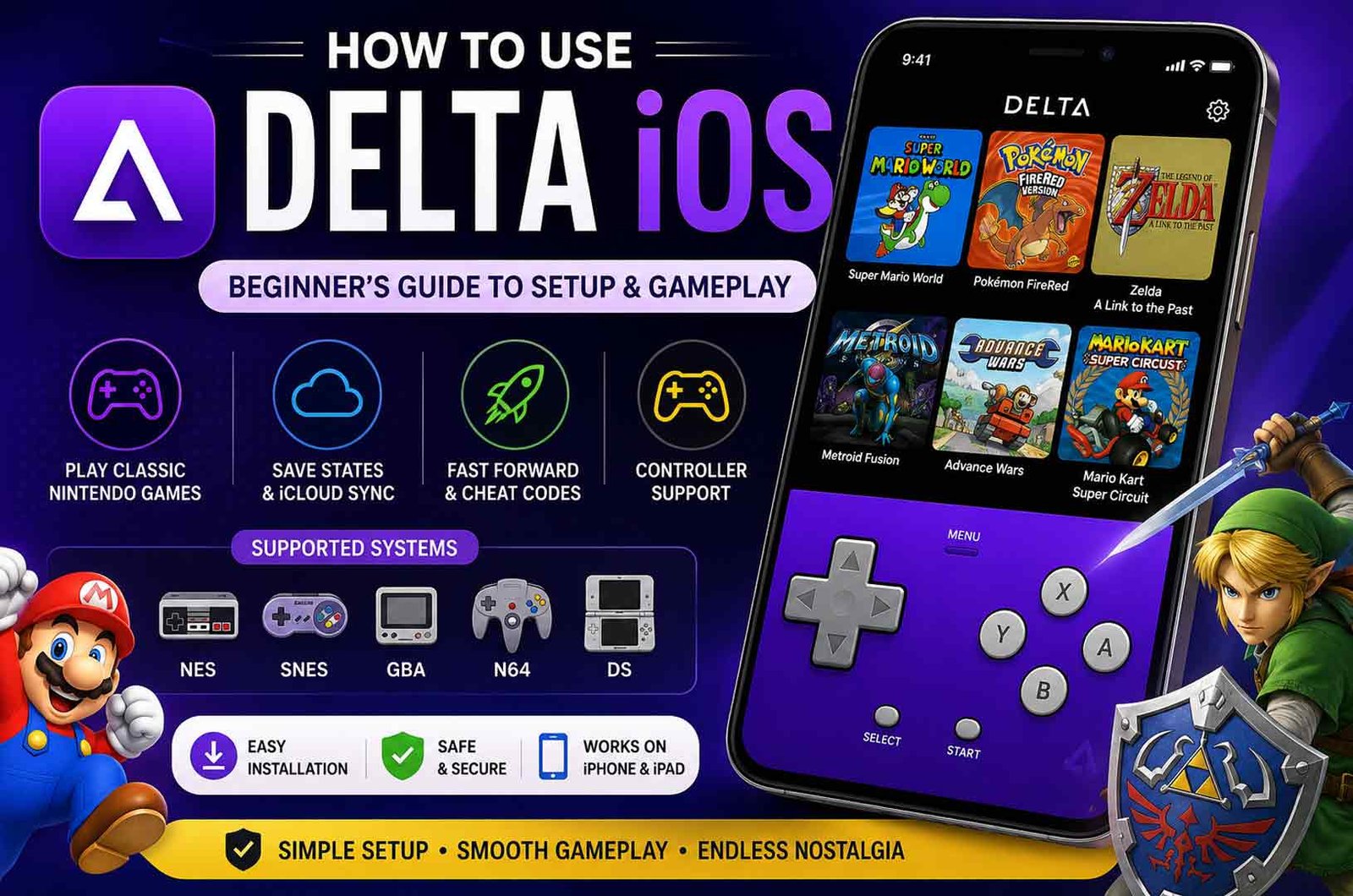
Delta supports several Nintendo systems. These include NES, SNES, Game Boy, Game Boy Advance, Nintendo 64, and Nintendo DS. This means one app can play many types of games.
The basic process is simple:
Delta handles the rest. It shows on-screen controls and manages game performance.
Supported Devices and System Requirements
Delta iOS works on most modern Apple devices. It does not require high-end hardware, but newer devices perform better.
The app supports:
You need:
On newer devices, games run smoothly with stable performance. Older devices may still work, but some systems like Nintendo 64 and Nintendo DS can lag.
iPad users get extra benefits. The larger screen makes games easier to play. The layout also gives more space for controls and menus.
How to Install Delta iOS (Step-by-Step)
There are two main ways to install Delta iOS. The best method depends on your region and device setup.
Method 1: Install from App Store (Recommended)
This is the easiest and safest method.
Follow these steps:
-
Open the App Store on your iPhone or iPad
-
Search for “Delta Emulator”
-
Tap Get and install the app
-
Open the app after installation
-
Allow required permissions
This method does not need a computer. It also ensures you get the official and safe version of the app.
Method 2: Install Using AltStore (If Not Available)
If Delta is not available in your App Store region, you can install it using AltStore.
Steps:
-
Install AltStore on a PC or Mac
-
Connect your iPhone using a cable
-
Install AltStore on your device
-
Download the Delta IPA file
-
Open AltStore and install the file
Apps installed this way need to be refreshed every 7 days. This keeps them active on your device.
This method is useful when the App Store option is not available, but it requires more steps.
How to Add Games (ROMs) to Delta iOS
Delta does not include games. You must add ROM files yourself.
ROMs are digital copies of games. They are required for the emulator to work.
To add games:
After importing, the game appears in your library. You can open it anytime.
Make sure the file format is correct:
If the format is wrong, the game may not load.
How to Play Games on Delta iOS
Once your games are added, playing is simple.
Open Delta and tap on any game in your library. The game will start instantly.
Delta provides on-screen controls that match the original console. You can use these controls to play normally.
You can also:
-
Pause and resume games anytime
-
Use save states to save progress at any point
-
Speed up gameplay using fast-forward
Save states are different from normal game saves. They let you save exactly where you are, even in the middle of a level.
You can switch between games easily by returning to the main menu.
Key Features of Delta iOS
Delta iOS includes many useful features that improve gameplay and make the app easier to use.
Save States
Save states let you save your progress at any moment. You do not need to wait for in-game save points. This is useful for long or difficult games.
Fast Forward
This feature speeds up gameplay. It is helpful for slow parts like grinding or long animations. A speed of 2x or 3x works best for smooth audio.
Cheat Codes
Delta supports cheat codes from systems like GameShark and Action Replay. You can enter codes to unlock features or modify gameplay.
Controller Skins
You can change how the on-screen controls look. Many custom skins are available, which improve comfort and design.
iCloud Sync
Delta can save your game progress to iCloud. This allows you to continue playing on another Apple device without losing data.
AirPlay Support
You can connect your device to a TV using AirPlay. This lets you play games on a bigger screen while using your phone as the controller.
Controller Support and Setup
Delta iOS works well with physical controllers. This makes gameplay easier and more comfortable, especially for long sessions.
It supports:
-
MFi-certified controllers
-
Xbox controllers
-
PlayStation DualShock and DualSense
-
Nintendo Switch Pro Controller
To connect a controller:
-
Turn on Bluetooth on your device
-
Pair the controller in iPhone settings
-
Open Delta and start a game
Delta usually maps buttons automatically. This means you can start playing without manual setup. If needed, you can adjust controls inside the settings.
Using a controller gives better control than touch buttons. It also feels closer to using a real gaming console.
Best Settings for Smooth Performance
Delta iOS runs well by default, but some settings can improve performance.
Use these settings for better results:
-
Set fast-forward speed to 2x or 3x for stable audio
-
Keep controller opacity between 50% and 70% for clear view
-
Enable haptic feedback for better response
-
Turn on background blur for cleaner visuals
-
Keep iCloud sync enabled to protect saves
For heavier systems like Nintendo 64 or DS:
-
Lower graphics settings if available
-
Avoid high fast-forward speeds
-
Close other apps running in the background
These small changes help reduce lag and improve gameplay.
Is Delta iOS Safe and Legal to Use?
Delta iOS itself is safe when installed from trusted sources like the App Store or AltStore. It is open-source, so its code is transparent and reviewed by developers.
The emulator is legal in most countries. It does not break any rules by itself.
However, ROM files are different. Downloading games you do not own is considered copyright infringement in many regions. The safest approach is to use ROMs from games you already own.
Some websites promote tools like “Delta executor” or “Delta Roblox iOS.” These are not related to the real Delta app. They are often unsafe and may contain malware. Delta iOS does not require any key system or external downloads.
Common Problems and Easy Fixes
Game Not Loading
If a game does not open, the file format may be wrong.
Use correct formats:
If the file is correct, try downloading it again.
Audio Problems During Fast-Forward
Sound may break when using very high speeds.
Fix:
Controller Not Working Properly
Sometimes buttons may not respond correctly after reconnecting.
Fix:
iCloud Sync Not Working
Saved data may not appear on another device.
Fix:
-
Check iCloud settings on your iPhone
-
Make sure Delta is enabled for iCloud
-
Sign out and sign back in if needed
App Crashes After iOS Update
The app may stop working after a system update.
Fix:
Delta iOS vs Other Emulators
Provenance
Provenance supports many systems, including Sega and older consoles. It is useful if you want more than Nintendo games. However, it is less simple than Delta.
RetroArch
RetroArch is a powerful emulator with support for many systems. It offers deep control and customization. However, it is complex and not beginner-friendly.
GBA4iOS
GBA4iOS focuses only on Game Boy Advance games. It is simple but limited. Delta is a better choice if you want more systems in one app.
PPSSPP
PPSSPP is designed for PSP games. It works well for that purpose but does not support Nintendo titles. It is useful only if you want PSP gaming.
Delta iOS is often the best option for beginners because it is simple, stable, and focused on Nintendo systems.
Tips for Beginners
-
Start with Game Boy Advance or SNES games for smooth performance
-
Enable iCloud sync before playing to protect your progress
-
Use a Bluetooth controller for better control
-
Keep your ROM files organized in folders
-
Avoid downloading files from unknown or unsafe websites
These steps help you avoid common problems and improve your experience.
Bottom Line
Delta iOS makes it easy to play classic Nintendo games on iPhone and iPad. It does not require a jailbreak and works well on most modern devices.
The app is simple to install, easy to use, and free. It includes useful features like save states, controller support, and cloud sync.
To use it safely, download the app from official sources and only use ROMs you own. With the right setup, Delta iOS can provide a smooth and reliable gaming experience.
(FAQs)
Do I need a computer to use Delta iOS?
You can install it directly from the App Store without a computer.
Can I play multiplayer games on Delta iOS?
There is no native multiplayer support. Some games allow local shared play on one device.
Will my progress be saved?
You can use save states and iCloud sync to keep your progress safe.
Why are my games not working?
This usually happens due to incorrect file format or a broken ROM file.
Can I use a controller with Delta iOS?
It supports many Bluetooth controllers like Xbox and PlayStation.
What is the best device for Delta iOS?
Newer iPhones and iPads provide the best performance, especially for advanced systems like DS.
Keep Reading:
How Coyyn Works: A Simple Guide to Digital Finance and Blockchain Tools








 Life Style1 year ago